

 Premium version does not include an extra logo
How to Watermark Your Photos: Step-by-Step Guide Using Watermark Soft
Adding a watermark to your photos is the easiest and most reliable way to protect them from unauthorized use. With our Watermark Generator, you can add text or logo to photos online and ensure that your images always carry your copyright.
Our tool supports batch watermarking, so you can process entire photo collections in minutes. Whether you are a photographer, blogger, or business owner, watermarking helps protect your work and promote your brand at the same time.
Step 1: Choose photos to protect
Launch the Watermark application and select “Upload images” to start working with photos.


Step 2: Upload Images
Click the “Upload images” button or drag & drop your files into the window. Multiple image upload is supported, which makes batch watermarking fast and efficient.


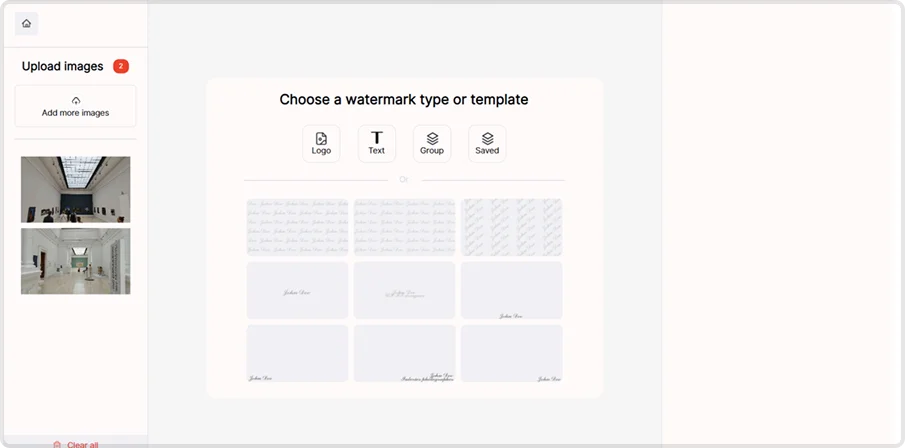
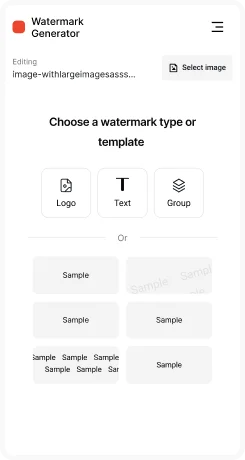
Step 3: Select Watermark Type
Choose the type of watermark you want to add:
- Logo — upload your brand logo as a watermark
- Text — add copyright notice, website, or name
- Group — use ready-made watermark templates
- Saved — quickly reuse previously saved watermark templates
Step 4: Configure Text Watermark
Main parameters:
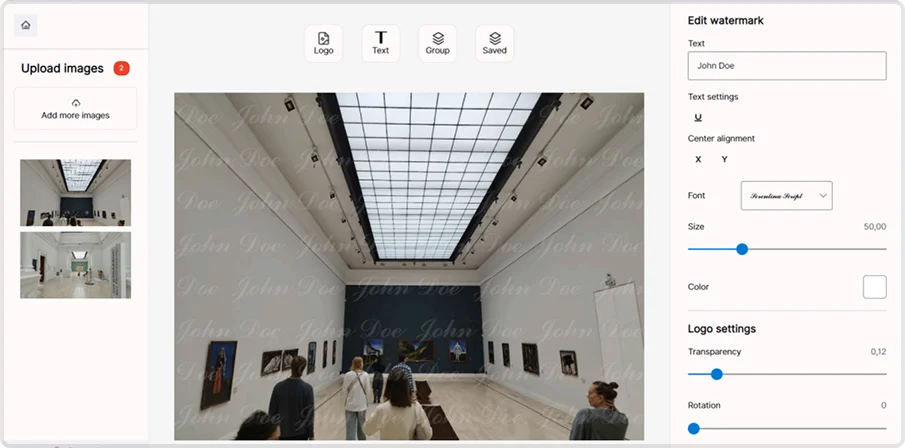
- Size — adjust watermark text size using the slider
- Color — choose text color (white, black, or custom)
- Transparency — set watermark opacity (from subtle to fully visible)
- Rotation — place watermark horizontally, vertically, or diagonally
Additional settings:
- Effect — add shadow or outline for better visibility
- Tile — repeat the watermark across the entire photo
- Tile spacing — control distance between repeated watermarks
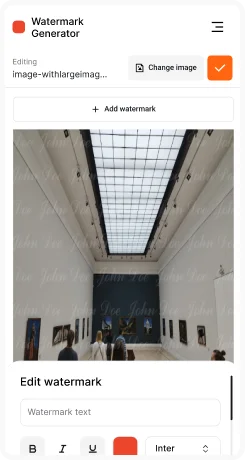
Text settings (via Edit watermark):
- Enter custom text (e.g., © Your Name, Website, or Brand)
- Select font and alignment (X and Y positioning on the image)
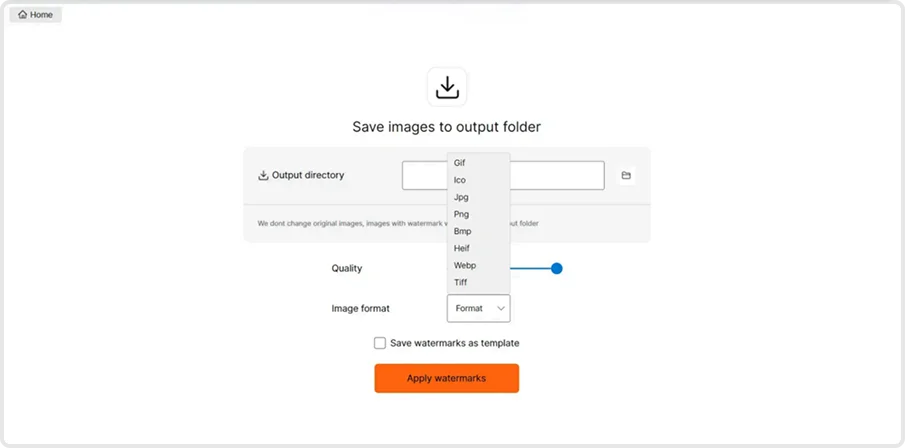
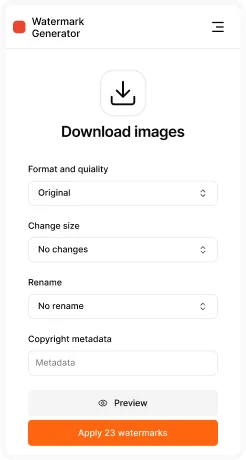
Step 5: Export Results
Export settings include:
- Output directory — choose where your watermarked photos will be saved
- Quality — adjust compression level (higher = better image quality)
- Image format — save as JPG, PNG, WEBP, TIFF or other formats (GIF, BMP, HEIF)
Additional options:
- Save your watermark configuration as a template for future use
- Click “Apply watermarks” to process all uploaded images
Watermarking your photos takes only a few steps, but gives long-term protection. With Watermark Generator, you can create professional-looking watermarks, save them as templates, and apply them to hundreds of images at once. Start using Watermark Photos Online today and make sure your creative work is always safe and credited to you.
Key Program Features:
- Batch image processing – handle hundreds of images quickly, saving time
- Transparency and size adjustment – create subtle or prominent watermarks as needed
- Diagonal watermark placement – covers entire image surface preventing easy removal
- Multiple output formats support – export to web-friendly or print-ready formats
- Template saving functionality – save watermark configurations for consistent branding
- Real-time preview – see exactly how watermark looks before processing
- Bulk processing capabilities – process entire photo collections in one operation
- Professional watermark effects – shadow and outline effects for better visibility
FAQ
1. Why do I need to watermark photos?
Watermarks protect your photos from unauthorized use and ensure that viewers always see your name or brand.
2. Can I watermark multiple photos at once?
Yes, the program supports batch processing so you can watermark hundreds of images in one click.
3. What image formats are supported?
You can export photos with watermarks in JPG, PNG, WEBP, TIFF, and other formats.
4. Can I create transparent watermarks?
Yes, you can adjust watermark transparency to make it subtle but effective.
5. Will watermarking affect image quality?
No — you control quality settings and can export photos in high resolution.
6. Can I save watermark templates?
Yes, you can save your watermark (text, logo, style) as a template and reuse it anytime.


