

 Premium version does not include an extra logo
How to Convert Images to PNG: Step-by-Step Guide
Need to convert image to PNG? Our online PNG converter lets you turn JPG, BMP, GIF, WEBP, or TIFF files into sharp, high-quality PNG format while keeping transparency intact.
Thanks to batch PNG conversion, you can process entire folders of images in one click. Ideal for designers, photographers, and businesses who want to convert JPG to PNG or prepare graphics with transparent backgrounds for professional use.
Step 1: Choose Files to Convert
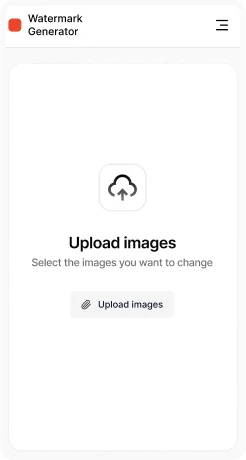
Open the converter tool and click Upload images. Select photos or graphics in formats like JPG, BMP, WEBP, GIF, or TIFF that you want to convert to PNG.


Step 2: Upload Files
Drag & drop your files or select them manually from your device. Multiple uploads are supported, so you can convert entire image collections to PNG in one go.

Step 3: Adjust Conversion Settings
Choose quality level and PNG as your target format. This ensures your files will be optimized for universal compatibility, smaller size, and faster online sharing.


Step 4: Export & Save
Click Apply and all uploaded images will be processed automatically. Once complete, download your files in PNG format to the chosen output folder.
Key Features of PNG Converter
- Batch PNG conversion – convert hundreds of images to PNG at once.
- Transparency support – preserve or create transparent backgrounds.
- Lossless quality – keep every detail sharp and clean.
- Flexible input formats – convert from JPG, BMP, TIFF, WEBP, GIF, and more.
- High compatibility – PNG works perfectly for web, design projects, and digital archives.


