

 Premium version does not include an extra logo
Video Watermarking Tutorial: Complete Watermark Guide
Adding a watermark to videos is the best way to protect your content from unauthorized use. With our Watermark Generator, you can easily watermark videos online using text, logos, or ready-made templates.
Whether you’re a content creator, business owner, or filmmaker, a watermark ensures that your videos always carry your brand identity. Our tool supports batch video watermarking, allowing you to process multiple files at once and export them in all popular formats (MP4, AVI, MOV, MKV, WMV, and more).
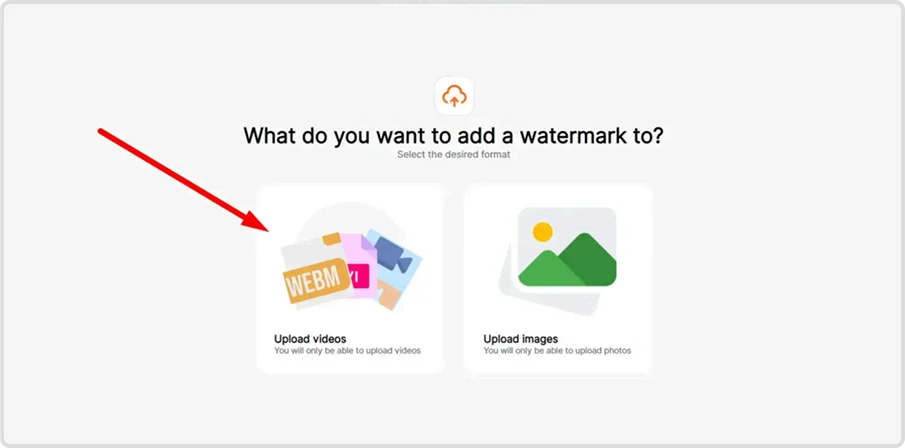
Step 1: Select Video Mode
Open the Watermark application and choose “Upload videos”. This mode is specifically designed for working with video files.

Step 2: Import Your Video Files
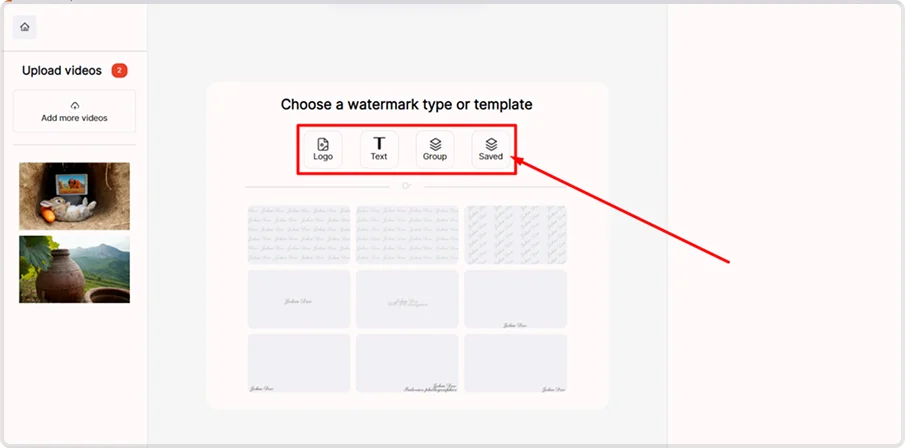
Click “Add more videos” to upload one or multiple files. Each uploaded video appears as a thumbnail in the sidebar. Use “Clear all” if you want to remove all imported files.


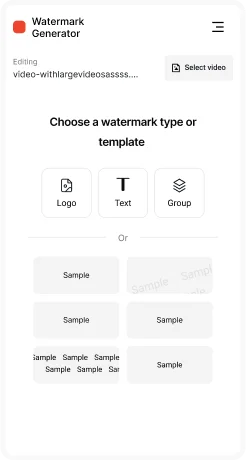
Step 3: Choose Watermark Type
Select what you want to add:
- Logo watermark — upload your brand logo to protect and promote your work
- Text watermark — add your name, website, or copyright notice
- Templates — quickly apply previously saved watermark presets
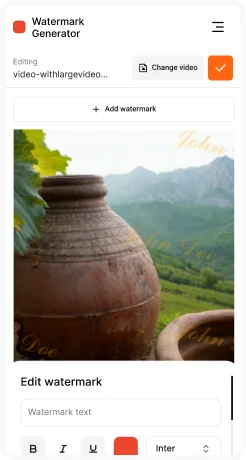
Step 4: Configure Watermark Properties
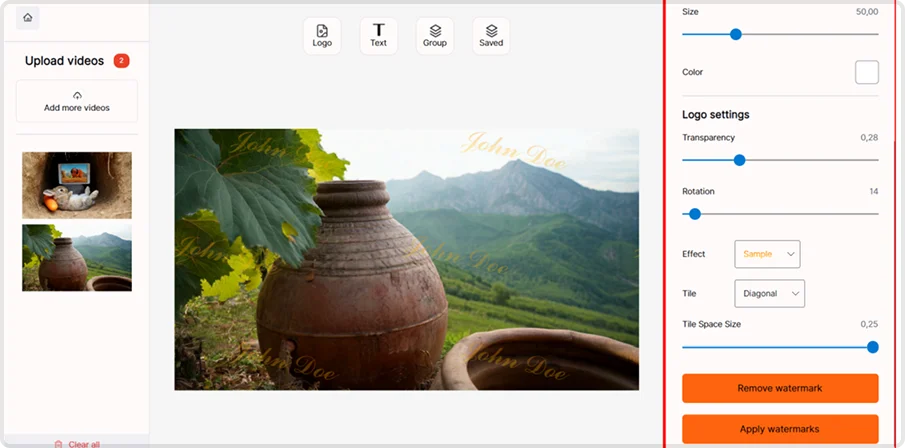
Customize watermark size, position, opacity, rotation, and color. Add visual effects like shadow for better contrast. Use the Tile feature to cover the entire video frame with repeating watermarks for maximum protection.
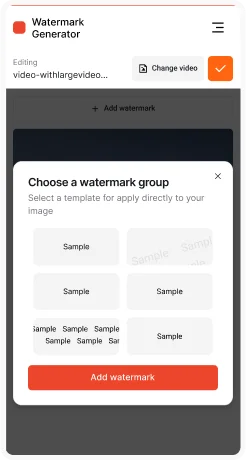
Step 5: Select Template (Optional)
Browse the template gallery and choose pre-designed watermark layouts with consistent opacity and placement. This helps create a professional, branded look.

Step 6: Export Configuration
Adjust output settings before saving:
- Output directory — select where to save watermarked videos
- Quality settings — control compression level and file size
- Save watermark as template — keep your settings for future use

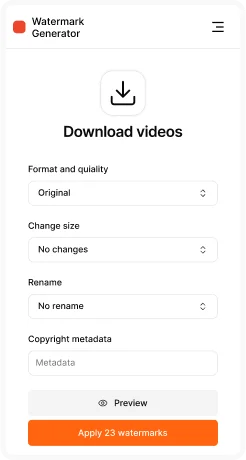
Step 7: Choose Output Format & Export
Export watermarked videos in the format that suits your needs:
- MP4 — universal and web-friendly
- AVI — high quality for editing workflows
- MKV — advanced container with multi-track support
- MOV — optimized for Apple devices and Final Cut Pro
- WMV — Windows Media format
- FLV — legacy Flash video format
- WEBM — modern format for web use
- MPEG/MPG — broadcast standard
- OGV — open-source format
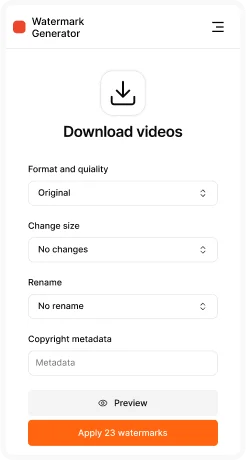
Finally, click “Apply watermarks” to start batch processing. All uploaded videos will be processed with identical settings.

With Watermark Generator for videos, you can protect your video content in just a few minutes. The software supports all popular formats, batch processing, and professional-quality exports. Start adding watermarks to your videos today and make sure your content always stays safe and branded.
Key Program Features:
- Batch video processing — handle multiple video files simultaneously
- Timeline preservation — maintains original video duration and frame rate
- Audio retention — preserves all audio tracks without degradation
- Multiple format support — export to 10+ video formats
- Template system — save configurations for consistent branding
- Professional quality — maintains broadcast standards
- Real-time preview — see watermark placement before processing
- Pattern distribution — straight or diagonal watermark layouts across frames
FAQ
1. Why should I watermark videos?
Watermarks help protect your video content from theft and unauthorized use, while keeping your name or brand visible.
2. Can I watermark multiple videos at once?
Yes, our software supports batch video watermarking, allowing you to process many videos simultaneously.
3. What formats can I export watermarked videos in?
You can export videos in MP4, AVI, MOV, MKV, WMV, WEBM, MPEG, and more.
4. Will watermarking affect video quality?
No — the software preserves original resolution, frame rate, and audio quality.
5. Can I create transparent or tiled watermarks on videos?
Yes, you can adjust opacity for a subtle transparent look or use tiled watermarks for maximum protection.
6. Can I save my watermark settings for future videos?
Yes, you can save your watermark as a template and reuse it for consistent branding.


